Henry Joseph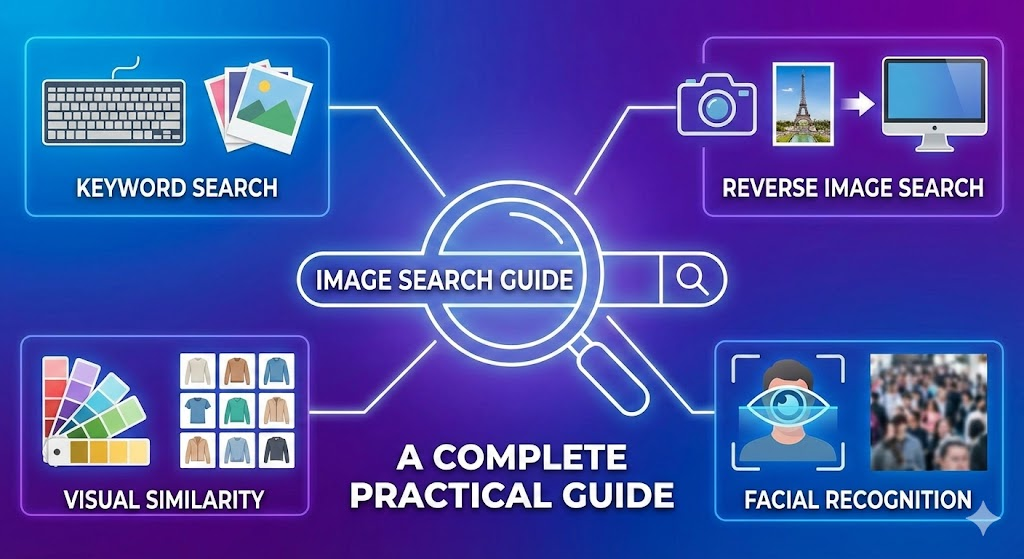
Introduction
Image search tools work on computers, smartphones, and tablets. Some let you upload pictures, while others accept image links or camera photos. Pinterest also helps you discover designs and creative ideas. This guide explains simple search methods, useful tips, and ways to protect your privacy.
1. What Does It Mean to Search an Image?
Image search uses a picture to find related information online. Instead of typing a long description, you provide an image to a search tool. The tool examines visual details, including shapes, colors, objects, and patterns. It then displays related pictures or useful webpages.
For example, imagine seeing attractive shoes in a social media post. You can upload their picture to find similar designs or possible shopping pages. This process is called reverse image search. It helps with shopping, research, travel planning, and identifying everyday objects. However, similar pictures do not always show identical products.
2. How to Search an Image Online
Learning how to search an image online is simple. Tools such as Google Lens and Bing Visual Search let you explore pictures using visual information.
Follow these steps:
- Open a visual search website.
- Find the camera or image upload option.
- Select a picture from your device.
- Wait for the tool to analyze it.
- Review similar images and related websites.
- Adjust the selected area if necessary.
Choose a clear picture with good lighting. If your first search fails, crop the image around the main object. You can also try another photograph for better results.
3. How to Search an Image on iPhone
You can search pictures on an iPhone using supported applications and websites. Google Lens is useful for identifying objects and finding similar images.
To begin, open the Google app or Google Photos. Find the Google Lens icon and select a saved picture. You can also take a new photograph when needed. Review the results to discover products, plants, clothing, and other objects.
For example, take a picture of an interesting chair. A visual search might reveal similar furniture and shopping websites. Available features may vary by application and iOS version.
4. How to Search an Image on Safari
Safari lets Apple users access visual search tools without changing browsers. Open Safari on your iPhone, iPad, or Mac. Visit Google Images or another supported visual search website.
Look for an upload option and select your picture. After processing, the service may display similar images, websites, and related information.
Some devices also offer image actions through a long press or right-click. These options depend on the website and device. Remember that Safari is the browser, while the search service performs the image analysis.
5. How to Search an Image on Pinterest
Pinterest is useful for finding fashion ideas, home decorations, recipes, crafts, and photography inspiration. Its visual search features help you discover Pins with similar designs and objects.
Open Pinterest and select an interesting Pin. Look for its visual search feature, if available. Select the picture area you want to explore. Pinterest may show related colors, patterns, products, and styles.
For example, searching a living room picture can reveal similar sofas, cushions, and decorating ideas. However, Pinterest may not identify the original photographer. Try another reverse image search tool when you need to investigate a photograph’s source.
6. How to Use Google Lens
Google Lens helps you find information through pictures. It can recognize many common objects, landmarks, plants, animals, and products.
Open Lens through a supported Google application or website. Upload a picture or point your camera at an object. Select the relevant area when necessary. The results may include related photographs, product pages, and explanations.
Suppose you find an unfamiliar plant in your garden. Photograph its leaves and flowers, then search using Lens. Compare possible matches carefully because similar plants can look alike. For important identification decisions, consult reliable specialist sources.
7. How to Use Bing Visual Search
Bing Visual Search provides another way to explore pictures. Open Bing Images and find its visual search or upload option.
Upload your image and examine the results. Depending on the picture, you may find related photographs, products, and websites.
For example, searching a backpack picture may reveal similar bags. Compare colors, logos, shapes, and product details before choosing a match. Trying multiple search engines can also help when your first search produces limited results.
8. How to Search by Uploading a Picture
Uploading a saved picture is a straightforward reverse image search method. It works with photographs, screenshots, and downloaded images.
Open a visual search service that supports uploads. Select the upload button and choose your picture. Wait for the results, then examine matching images and webpages.
For clearer results, crop away unrelated objects. Keep enough detail to identify the subject. Check the website’s supported formats and file size limits if your upload fails. Trying a smaller JPG or PNG file may solve the problem.
9. How to Search an Image Using Its URL
An image URL is the web address associated with a picture. If the image already appears online, using its address may save time.
Open the webpage containing the picture. On a computer, right-clicking may reveal an option to copy the image address. On a phone, press and hold the picture to check available options.
Next, paste the address into a visual search service that supports URL searches. Some links may fail because they point to webpages or have restricted access. If that happens, upload a permitted copy instead.
10. How to Find the Original Source
Finding an original photograph takes more work than finding similar images. Search engines may display edited copies, reposts, or thumbnails.
Upload the clearest version to a reverse image search tool. Open promising results and check publication dates, captions, and photographer credits. You can also search distinctive words appearing in the image.
Remember that the oldest visible date does not prove original ownership. When reusing a photograph, find the creator’s website or an authorized image library. Always check its licensing terms before publishing it.
11. How to Identify Products Through Images
Visual search makes shopping easier when you do not know a product’s name or brand. It works well for clothing, shoes, furniture, and accessories.
Upload a clear picture and compare the results. Examine the item’s shape, color, logo, and other details. Add descriptive words to narrow your search.
For example, searching a black backpack may show hundreds of options. Adding terms such as “laptop compartment” or a visible brand name may help.
Before purchasing, check the seller’s reputation, product details, return policy, and total price. Similar pictures do not guarantee identical products.
12. Tips for Better Image Search Results
A few simple changes can improve your results. Blurry pictures often produce unrelated matches, while clear images reveal useful details.
- Use clear pictures: Choose sharp images with good lighting.
- Crop the subject: Remove distracting background objects.
- Try another angle: Look for visible labels or logos.
- Add keywords: Include an object name, brand, or location.
- Compare tools: Try another search engine when necessary.
- Open webpages: Check the source instead of trusting thumbnails.
For example, cropping a lamp from a crowded room may help identify its design. Adding its color or brand can narrow the results further.
13. Is Image Search Safe and Private?
Image search is convenient, but privacy matters. Submitted pictures may be processed according to the service’s privacy policy. Avoid uploading sensitive documents, identity cards, or private photographs unless you understand the risks.
Crop unnecessary personal details from pictures. Be careful with visible addresses, faces, and vehicle registration numbers.
Copyright also matters. Finding a picture online does not automatically give you permission to publish it. Check ownership and licensing before using photographs on blogs or social media.
14. Common Image Search Problems
Sometimes searches return no useful matches. The picture may be blurry, uncommon, or missing from the search engine’s index.
Try improving the image brightness or cropping around the main subject. Use another search engine if necessary. If uploading fails, check your internet connection, image format, and file size.
If you find only similar pictures, investigate visible logos, labels, or landmarks. Combining visual searches with descriptive keywords often produces better results.
15. Quick Comparison of Image Search Methods
| Method | Best For | Cost |
|---|---|---|
| Google Lens | Identifying objects and products | Free |
| Google Images | Finding related pictures | Free |
| iPhone visual search | Searching phone pictures | Usually free |
| Safari | Accessing online search tools | Free |
| Fashion and design inspiration | Free | |
| Bing Visual Search | Finding similar images | Free |
| Image URL search | Searching existing online pictures | Usually free |
Choose Google Lens for everyday objects, Google Images for related webpages, and Pinterest for creative inspiration. Safari provides browser access to search services. For original sources, compare results across multiple tools.
Conclusion
Learning how to search an image helps you identify products, explore ideas, and investigate photographs. You can upload pictures, use supported image URLs, or search through Google Lens and Bing Visual Search. Safari provides convenient access to these tools, while Pinterest helps you discover similar designs.
For better results, use clear pictures and compare information from reliable sources. Protect your privacy and check copyright before reusing images. Try one of these methods today and discover what your pictures can reveal.
Frequently Asked Questions (FAQs)
1. How can I search an image for free?
Use Google Lens, Google Images, Bing Visual Search, or Pinterest’s available visual discovery features. Upload a picture and review the results.
2. How do I search an image on iPhone without an app?
Open Safari and visit a visual search website that supports image uploads. Select your picture and review the results.
3. How do I search an image online using Google?
Open Google Images or a supported Google Lens interface. Upload your picture and explore related images and webpages.
4. How do I search an image on Safari?
Open Safari, visit a visual search website, and upload a saved picture. The search service will analyze it.
5. How do I search an image on Pinterest?
Open a Pin and use its visual search feature when available. Explore similar fashion, decoration, and creative ideas.
6. Can I identify someone using a picture?
Reverse image search may reveal public webpages containing similar photographs. However, a matching image cannot reliably confirm someone’s identity. Verify important information carefully and respect privacy.